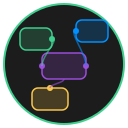
BaseNode
The foundational node type in NodeUI. BaseNode provides markdown content editing, connection handles, resize capabilities, and color theming. All other node types extend BaseNode.
Key Features
- Markdown rendering with full remark processing and sanitized HTML output (via DOMPurify)
- Inline editing -- double-click the content area to switch to raw markdown editing mode
- Auto-save with 500ms debounce during editing, plus immediate save on blur
- Video auto-resize -- embedded videos automatically adjust the node dimensions to match aspect ratio
- Connection handles on all four sides (top, right, bottom, left)
- Eight-direction resize handles (N, S, E, W, NW, NE, SW, SE)
- Pin toggle to lock position on the canvas
- Popover menu for title editing, color selection, and deletion
Configuration Options
| Option | Type | Default | Description |
|---|---|---|---|
id | string | Auto-generated UUID | Unique identifier for the node |
x | number | 0 | X-coordinate on the canvas |
y | number | 0 | Y-coordinate on the canvas |
width | number | 200 | Width in pixels |
height | number | 120 | Height in pixels |
title | string | 'New Node' | Display title in the title bar |
content | string | '' | Markdown content rendered in the body |
color | string | 'yellow' | Color theme: default, red, green, blue, yellow, purple |
isPinned | boolean | false | Whether the node is locked in position |
metadata | object | null | Arbitrary metadata attached to the node |
Usage
Writing Content
- Double-click the content area to enter edit mode.
- Type raw markdown. Changes are auto-saved every 500ms as you type.
- Click outside the node (blur) to exit edit mode. The content re-renders as formatted markdown.
Embedding Media
BaseNode supports embedded media through markdown syntax. Videos with the data-auto-resize attribute trigger automatic node resizing based on the video's native aspect ratio.
The markdown processor supports:
- Standard markdown (headings, lists, links, code blocks)
- Embedded images
- Embedded iframes (YouTube, etc.)
- Embedded videos with auto-resize
Connecting Nodes
Hover over any edge of the node to reveal the connection handle. Click and drag from one handle to another node's handle to create an edge.
TIP
Handles visually indicate their connection state. A connected handle shows a filled dot; a disconnected handle shows an empty dot.
Color Variants
Six color themes are available. Each theme sets coordinated background, border, and accent colors via CSS custom properties:
--color-node-{color}-bg-- background color--color-node-{color}-border-- border and accent color
Change colors through the popover menu (settings icon) or the color-cycle icon in the title bar.